-
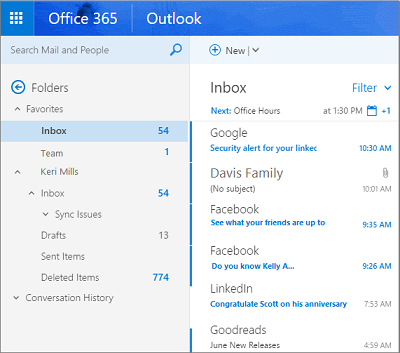
Open Outlook on the web.
-
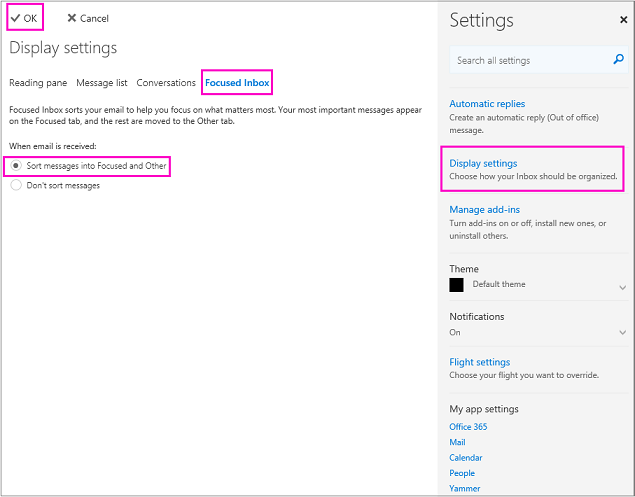
Select Settings
 > Display settings > Focused Inbox.
 -
Under When email is received, select Sort messages into Focused and Other. The Focused and Other tabs will appear at the top of your mailbox. You’ll be informed about email flowing to Other, and you can switch between tabs any time to take a quick look.
-
Click OK
This does not filter through to outlook itself when Outlook relaunched so have to switch it off in Outlook
-
In Outlook, select the View tab.
-
Select Show Focused Inbox.
Once this has been clicked, Focused and Other will disappear and will show All mail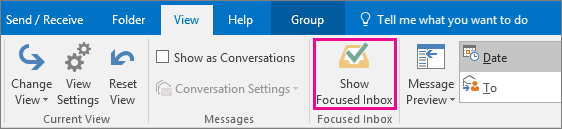
-